Instructor & Student Microphones
Use this Feature to Support Active and Engaged Learning
- Keep all students in the loop: In a large, busy room, using the microphone ensures that all students, including those for whom English is not a native language, can understand all of your instructions and information, and can hear their peers reporting out even when those peers speak softly.
- Keep the learning active: The microphone saves time (you don’t have to repeat yourself), boosts energy (you don’t have to call for a complete stop to provide an update), and lets you operate efficiently (with a portable mic, you can speak from anywhere in the room rather than returning to the front or center).
- Build student confidence: Students who “take the mic” can gain presentation and communication skills and build their confidence in having a slightly more formal role in talking to their peers.
- For more teaching tips and examples, visit the Stearns Center’s Active Learning page.
Technology Instructions
- Once the system is powered on via the touch panel controller, the microphones can be used.
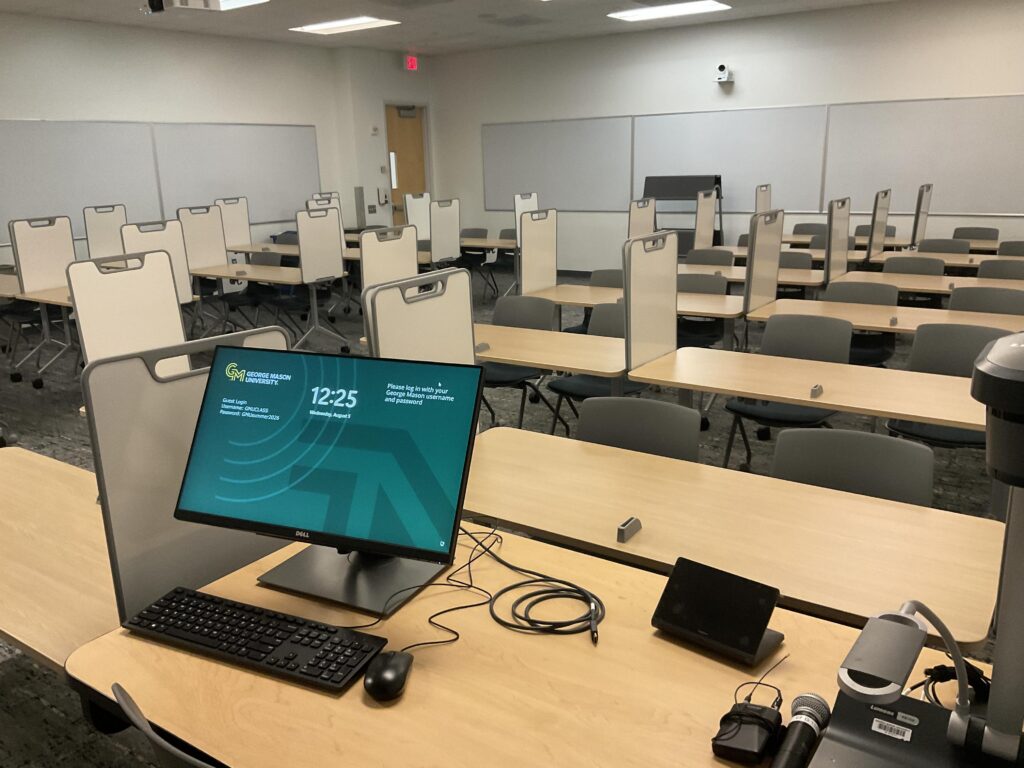
- The gooseneck is fitted in the lectern. The wireless microphones are located on top of the lectern in a black pouch.
- Power on the microphone (handheld) or the microphone receiver (lavalier) before each use.
- Use the touch panel controller for volume adjustments or muting.
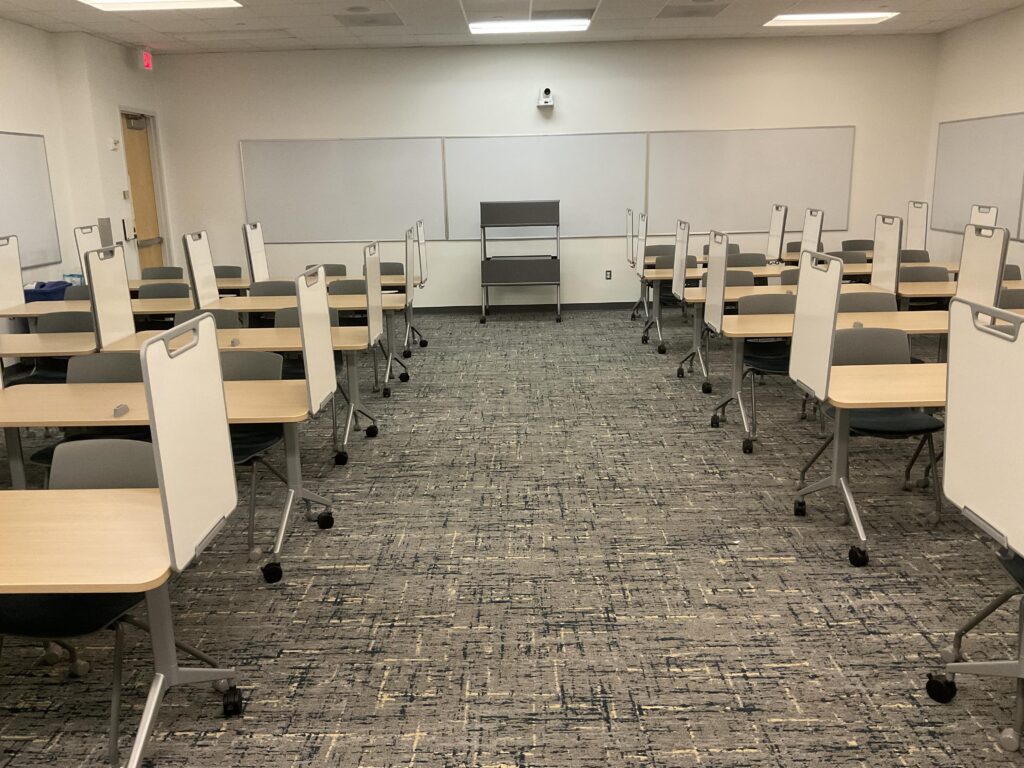
- The student wireless microphones can be found sitting on their charging station on a moveable rack (Check that for each room)
- Note: the student microphones are effective for in-class usage, only. Not recommended when connecting virtually via Zoom, Blackboard Collaborate Ultra, or MS Teams. Please see the ” Cameras and ceiling microphones” section for more information.
Batteries must be replaced on a regular basis. Spare batteries will also reside in the drawer. For additional spare batteries, contact support: 703-993-3456.
Engaged Learning
We encourage you to take advantage of classroom features to enhance teaching and engaged learning. Please scroll down for instructions on how to use these features.
| If you want to... | Consider active learning activities such as... | Use low technology options like... |
|---|---|---|
| Check understanding | Having students use a piece of their own paper. Supplying an index card for responses. |
|
| Encourage group discussion | Having students work with other students in the same row or on either side of them. | |
| Model problem solving | Having students work on a shared document that is then projected. | |
| Engage in interactive lecture | Having students work on a shared document that is then projected. Supplying an index card for responses. |
|
| Co-create learning experience in the classroom | Having students work with other students in the same row or on either side of them. Having students undertake peer review in Blackboard or Padlet. |
|
| Encourage peer instruction | Having students create digital presentations outside of class that are then projected. | |
| Show real world application | Having students use class time to work on a solution to the problem and give progress reports. |