
Touch Panel — Quick Guide
Quick reference for common classroom controls at George Mason University.
Standard Features
1. Blank Screens
Tap Blank Screens to turn off all displays in the room. Tap it again to return to the previously selected source.
2. Microphones
Open the Microphones menu to adjust input levels and mute/unmute each microphone independently.
3. Camera Control
Tap Camera Control to open the camera menu. From here you can tilt, pan, zoom, and enable/disable tracking.
• Save a preset: position the camera, then press and hold a preset button.
• Recall a preset: press the preset again.
4. Volume & Mute
Use the up/down arrows to adjust program (source) audio. Tap Mute to toggle source audio on/off.
5. Sources
Use the source buttons (PC, Laptop, Wireless, Doc Cam) to choose what appears on the projector(s)/display(s).
Note: available sources may vary by classroom.
6. Camera Tracking Indicator
When camera tracking is ON, the camera automatically follows the active speaker or presenter. Toggle tracking within Camera Control.


Room Specific Features
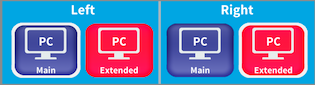
Dual Display Rooms (Left / Right)
In rooms with two displays, you can choose a different source for each screen.
• Main = mirrors the classroom PC.
• Extended = uses the screen as an additional desktop/monitor.
Select Left and Right independently to configure each display.
Active Learning Classroom
These rooms include multiple group displays around the space. Students can connect to local displays for collaboration when enabled.
Presentation Mode
Use Presentation for a standard teaching setup. The selected Source appears on all classroom monitors simultaneously.
Flex Presentation
Use Flex to let students share to their local/group display.
Steps:
a. Choose Group to see the list of group displays.
b. Select a group display to mirror it to all room displays when you need to present class-wide.

Room Specific Features
Extended Display is Blank:
Open windows display settings to verify display layout and drag material to share onto the extended display.
No Audio from Selected Course:
Ensure the audio output device settings on your connected source is set to “Crestron”