
Quick Guide
Quick Start
Document Cameras:
Use these document cameras to display physical documents on the displays installed in the classroom. There are 2 models of document cameras present and their operation is similar. Specific details can be found in each models manual
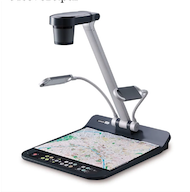
Model PS751:
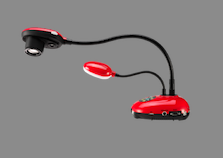
Model DC193:
Select the Doc Cam source using the Touch-Panel:
To begin, Select the Doc Cam source, This will turn on the Document Camera. Once the camera has start up it is ready to use with its default settings.

Useful Controls

Auto Tune:
Press the Auto button to automatically adjust the focus and brightness of the camera. It is best practice to press it every time you adjust the camera position or the lighting

Freeze:
Press the freeze button to freeze the current image onto the screen, press it again to unfreeze the image

Lamp:
Toggle on and off the lamps on the document camera, The lamps will turn on when the camera turns on by default

Brightness:
Use the Brightness controls to adjust the brightness of the lamp
(Up – Down)

Zoom:
Press these buttons to adjust the zoom of the camera. While zoomed you can use the arrow keys to adjust the pan

Rotate:
Rotates the displayed picture on the projector
Troubleshooting Tips
No Image:
Check the power to ensure the camera started when selecting the Doc Cam source from the touch panel Ensure screens are not blanked and Freeze is not enabled
Blurry or Bright/Dark Image:
Press the Auto Tune button to reset the focus and exposure. If that fails check the manual focus controls located near the camera lens and adjust the lamp brightness
Controls Locked:
PS751: Press and hold the [ENTER] and [LAMP] button for 2 seconds to toggle the control lock
DC193: Press the [Menu] Button, followed by the [DOWN] arrow key to unlock the controls
Support
Mason Square Classroom and Lab Support
Phone: (703) 993-8328
Hours: Mon–Fri, 8:00 a.m. – 9:00 p.m.