
Wireless Content Sharing – Quick Guide
Share via Browser
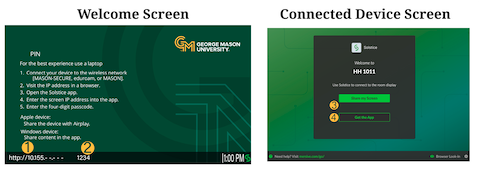
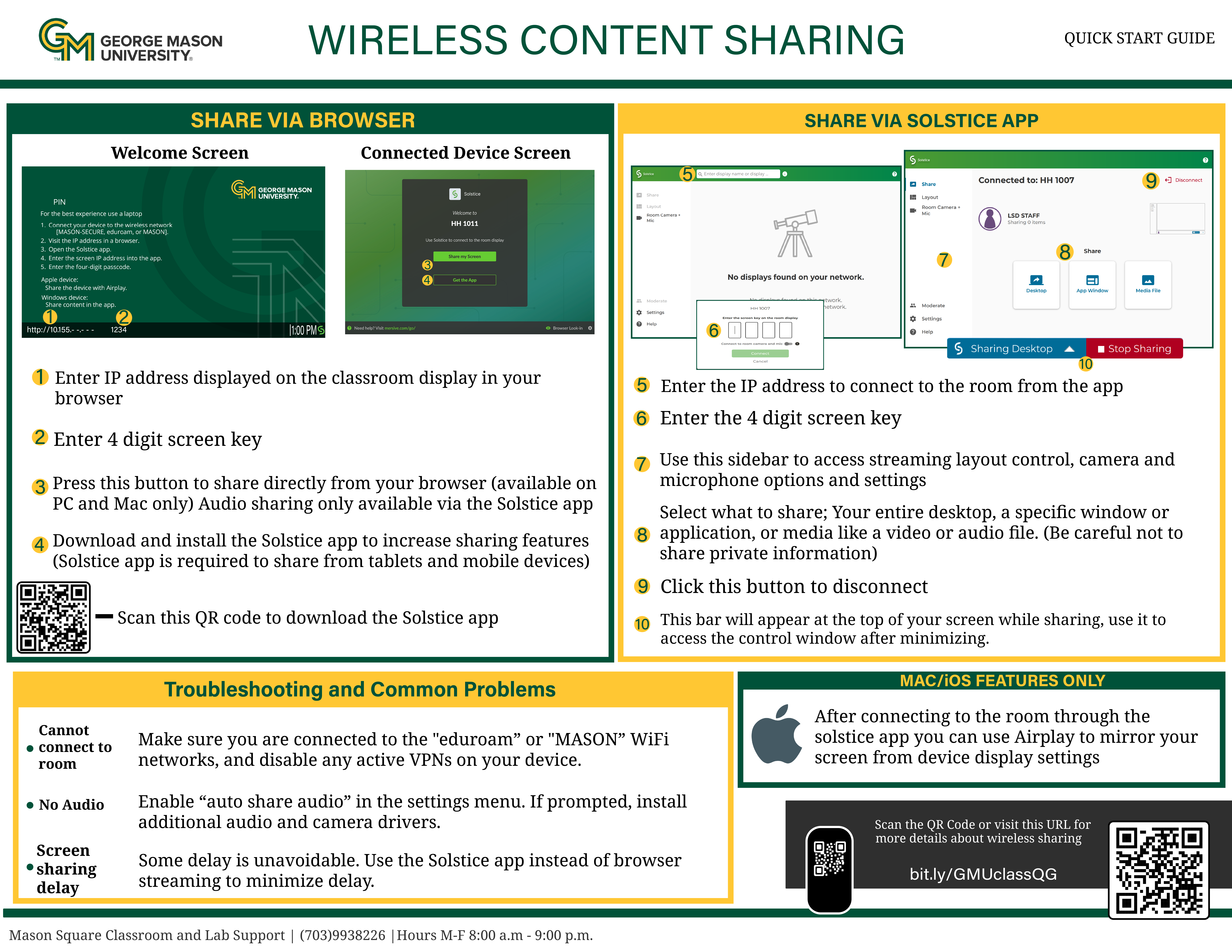
1. Enter the IP address shown on the classroom display in your web browser.
2. Enter the 4-digit screen key.
3. Share from the browser.
• Use the on-screen “Share” button to present directly from your browser.
• Note: Audio sharing from a browser is PC and Mac only. For full audio support, use the Solstice app.
4. Install the Solstice app (recommended) for additional sharing features.
• Tablets and mobile devices require the Solstice app to share.
Share via Solstice App
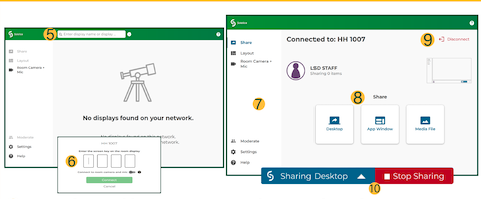
5. Enter the room IP address in the app to connect.
6. Enter the 4-digit screen key.
7. Use the left sidebar for layout control, camera and microphone options, and other settings
8. Choose what to share: your entire desktop, a specific window/app, or media (e.g., video or audio file).
• Reminder: Avoid sharing private information.
9. Click “Disconnect” when you’re done.
10. Control bar: While sharing, a small bar appears at the top of your screen. Use it to reopen the control window after minimizing.
Troubleshooting and Common Problems
Cannot connect to room
- Confirm you’re on the “eduroam” or “MASON” Wi-Fi network.
- Disable any active VPN on your device.
No audio
- In the app, enable “auto share audio” in Settings.
- If prompted, install additional audio/camera drivers.
Screen sharing delay
- Some delay is normal. For video, use the Solstice app instead of a web browser to minimize latency.
Mac / iOS Features Only
After connecting to the room through the Solstice app, you can use AirPlay to mirror your screen from device display settings.
More Information
For detailed instructions about wireless sharing, click below.
Support
Mason Square Classroom and Lab Support
Phone: (703) 993-8328
Hours: Mon–Fri, 8:00 a.m. – 9:00 p.m.